
Working the inbox
A first-day tour of the Juno inbox — the three panes, replying, saved replies, attachments, taking over from the AI, assigning, snoozing and resolving.
On this page
The inbox is where every customer conversation lands — WhatsApp, Messenger, Instagram, email and your website chat, all in one list. This tour walks through a normal first day: finding what needs you, answering it, and getting it out of the queue.
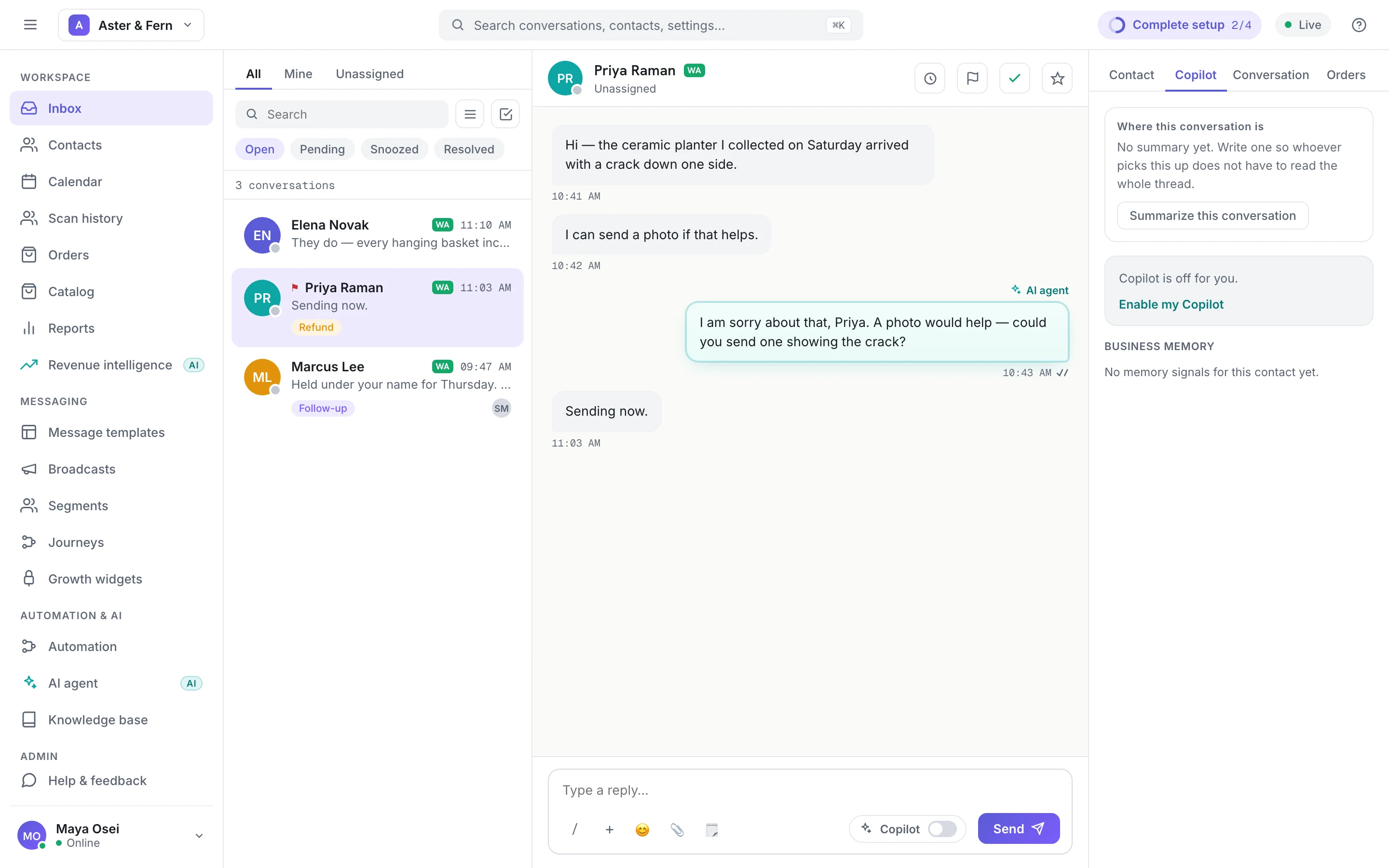
The three panes
Left — the conversation list. Three tabs across the top: All, Mine (assigned to you) and Unassigned. Below them, Search, and the status filters Open, Pending, Snoozed and Resolved, each with a count. If you have more than one kind of channel connected, a menu lets you Filter by channel. Each row shows the customer, the channel, the last message and any labels, a mark for its priority (‼ urgent, a flag for high, ↓ low), and the initials of whoever it is assigned to.
Middle — the thread. The conversation itself, with the customer's name and who it is assigned to at the top, and the reply box at the bottom. Click the owner line to assign the conversation. The buttons in the top right are for snoozing, setting priority and resolving.
Right — the details panel. Tabs for Contact (who this is, their labels, and Open full profile), Copilot (a summary and a suggested reply), Conversation (set the status, see the priority and channel, add or remove labels, and the AI switch) and Orders (the customer's orders — see Products and orders in the chat).
You can move through the list with the ↑ and ↓ keys and open a conversation with Enter.
1. Find what needs you
Start with Open and Mine: that is your work. Then look at Unassigned for anything nobody has picked up.
Two markers are worth knowing:
- An AI chip means the AI assistant is answering that conversation.
- Needs you means the AI handed the conversation over to a person and nobody has it yet. These go first — the customer has already been told someone will help.
A strip above the list tells you whether the AI is answering new conversations, and on which channels. Change takes you to the AI agent settings.
2. Take over from the AI when you need to
When the AI is handling a conversation, the thread says so and the reply box is replaced with a Take over button. Choose it to answer yourself. The AI then stops replying in that conversation, so you and it do not talk over each other.
The same switch lives in the details panel under Conversation as AI Agent auto-reply. It is one setting for the whole conversation — every teammate sees the same state.
3. Reply
Type in Type a reply… and press Enter to send. Shift+Enter starts a new line. A half-written reply is kept if you switch to another conversation or reload the page.

The buttons under the reply box, left to right:
- / — your Canned responses, the saved answers to questions you get every day. Pick one and it is inserted into the box, ready to edit before you send. Your team manages the list under Automation → Canned responses.
Faster: type / in the reply box itself, at the start of the box or after a space. A list opens, and what you type after the slash narrows it by shortcut or title —
/reffinds Refund policy. Use ↑ and ↓ to choose, Enter or Tab to insert (it replaces the/refyou typed, and does not send), and Esc to close the list. - + — Share product, to send items from your catalog. It appears when you have a catalog.
- Emoji.
- Attach — the paperclip. One file per message; anything you have typed goes with it as the caption. The limits depend on the channel: on WhatsApp, images up to 5 MB, video and audio up to 16 MB, documents such as PDF, Word, Excel and CSV up to 20 MB; on Messenger, any of those up to 20 MB; on email, up to 10 MB. Instagram and website chat cannot receive files from Juno, so the paperclip is greyed out there.
- Template — for sending an approved WhatsApp template, which you need when the reply window has closed (below).
On the right, the AI button (Draft a reply with AI) writes a reply into the box for you to read and change — it never sends by itself. Copilot for me switches on suggested replies for you in the Copilot tab, where Insert reply puts one into the box.
4. Watch the reply window
WhatsApp only accepts a normal reply within 24 hours of the customer's last message. When that is close, the reply box counts down: 24-hour reply window: … left.
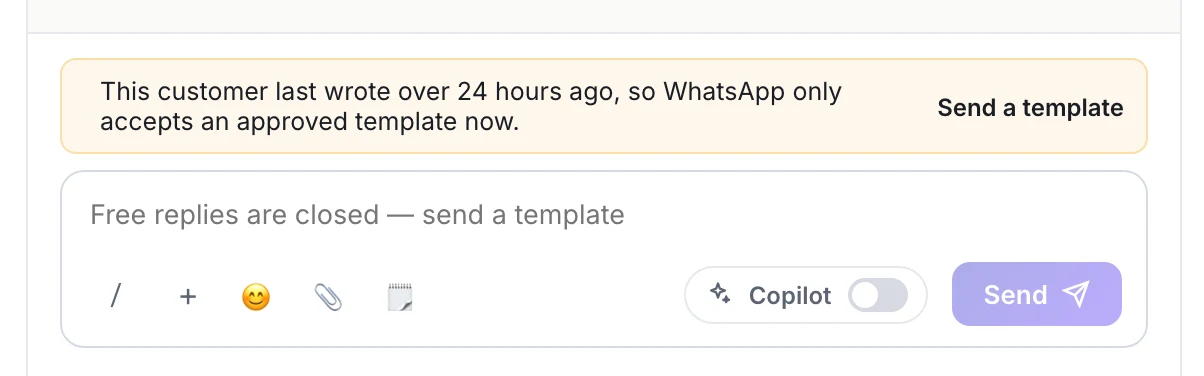
Once it has closed, the box tells you, and the only way to reach the customer is an approved template — choose Send a template, fill in its blanks, and send. On Messenger and Instagram there are no templates; a person can still reply for up to 7 days, then you wait for the customer. Attachments are also switched off while the window is closed. The full rules are in The WhatsApp 24-hour customer service window.
5. Assign, snooze, set priority or resolve
Assign it. Click the owner line under the customer's name — Assigned to … or Unassigned — and choose Assign to me, a teammate, or Unassign.
The three buttons at the top right of the thread:
- Snooze until later (the clock) — choose 1 hour, Tonight, Tomorrow morning, or Custom for a date and time. The conversation leaves the queue and waits under Snoozed, then comes back to Open by itself at that time.
- Set priority (the flag) — choose Urgent, High, Normal or Low.
- Mark as resolved (the tick) — done. The conversation moves to Resolved.
Waiting on the customer with no set time? Open the Conversation tab and choose Pending under Status. The same tab is where you add a label (Add label) or remove one (the ✕ on its chip).
If the customer writes again to a pending, snoozed or resolved conversation, it comes straight back to Open — you will not miss it. What each state means and when to use it is covered in Conversation status, priority and assignment.
To clear a backlog, use the checkbox button next to Search to select several conversations, then act on them together: Assign (to yourself, a teammate, or nobody), Label (Add label or Remove label), Snooze (for 24 hours) or Resolve.
Also in the thread
- Send CSAT survey (the star) asks the customer to rate the help they got.
- Apply macro (the lightning bolt) appears if your team has set up macros — several actions in one click.
- If two people change the same conversation at the same moment, the second is told to refresh rather than silently overwriting the first.