
Conversation status, priority and assignment
The four states a conversation can be in, what snoozing does, the four priority levels, and how assignment keeps a shared inbox from becoming a list nobody owns.
On this page
A shared inbox stops working the moment it becomes a list. Two people answer the same customer, or nobody does because everybody assumes somebody has. Status and assignment are what keep it a queue.
The four states
| Status | Meaning | Where it shows |
|---|---|---|
| Open | Needs an answer | The default queue |
| Pending | Waiting on the customer or on someone else | Out of the queue, still visible under its filter |
| Snoozed | Parked, with a time you chose | Out of the queue until that time, or until the customer writes |
| Resolved | Done | Out of the queue |
Each state has its own filter above the conversation list, with a count, so nothing in the middle two is ever out of reach.
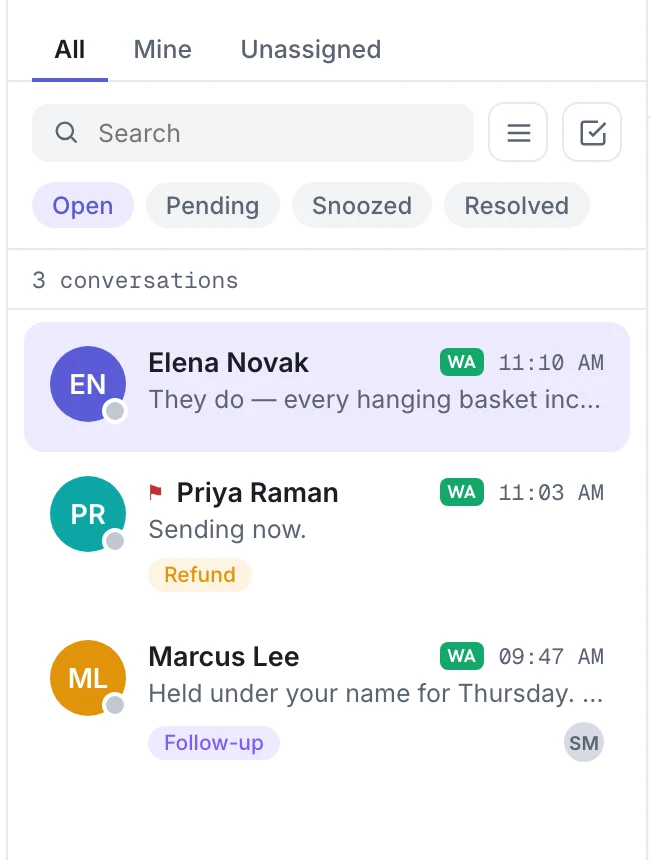
Pending is for a conversation where the ball is not in your court. To put a conversation there, open the Conversation tab of the details panel and choose Pending under Status. The same three buttons — Open, Pending, Resolved — move it back to the queue or close it.
Snoozed takes a conversation out of the queue until a time you choose. Snooze until later offers 1 hour, Tonight, Tomorrow morning or Custom. When that time comes, the conversation moves back to Open by itself — within about a minute — and appears in the queue again for everyone, without a page reload. You do not need to check the Snoozed filter to remember it.
Whatever the state — pending, snoozed or resolved — a new message from the customer moves the conversation straight back to Open.
Priority
Priority is a separate axis, not a fifth state, and it has four levels: Urgent, High, Normal and Low. The flag button at the top of the thread (Set priority) opens the four, with the current one ticked. The list marks each one differently — ‼ for urgent, a flag for high, ↓ for low — and shows nothing for normal, so the marks that matter stand out. A conversation can be snoozed and flagged at the same time — that is a supplier who needs chasing, and it is a meaningful thing to say.
Automation rules and macros can Set priority to any of the same four levels, and the inbox shows exactly what they set.
The list is ordered by latest message, not by priority, so the flag is there to catch the eye. It earns its keep only if it is applied honestly — if everything is flagged, nothing is.
Assignment
A conversation can be assigned to a person or left in the unassigned pool.

- Who has it is shown in the conversation header (Assigned to …) and on the Conversation tab of the details panel; the list shows the owner's initials.
- Unassigned is a pool, not a state of neglect — it is where new conversations wait until a rule or a teammate picks them up.
- Assign from the thread. Click the owner line under the customer's name (Assigned to … or Unassigned) to open the menu: Assign to me, any active teammate by name, or Unassign. Assigning a person stops the AI agent replying in that conversation. You need permission to assign conversations; without it, the line only tells you who has it.
- Assign by automation. An automation rule or macro with Assign to can name a teammate, or choose Next available teammate (round robin) — the active teammate with the fewest open conversations, ties going to whoever has waited longest for one. Teammates marked offline are skipped. When the AI agent hands a conversation over to people, it can assign it the same way, depending on your AI agent's handover settings.
- Bulk actions — the checkbox button next to Search — let you act on a selection at once, which is what makes a backlog recoverable. Assign opens the same menu as the thread (Assign to me, a teammate, or Unassign); Label lets you Add label or Remove label across every selected conversation, leaving their other labels alone; Snooze parks the selection for 24 hours; Resolve closes it.
Two people, one conversation
Juno assumes two agents will act on the same thread at the same time, because they will. When you snooze, set the priority or status, assign or resolve a conversation, a change made against a version of the conversation that has since moved is refused rather than silently applied: you see Conversation changed. Refresh and try again. instead of quietly overwriting what your teammate just did.
Labels are not status
Labels describe what a conversation is about — refund, complaint, VIP, follow-up. Status describes what has to happen next. Keeping them separate is what lets you answer both "what is unresolved?" and "how many refund requests this month?" without either question damaging the other.
There are two label sets, deliberately: a conversation label lives on this thread, and a contact label lives on the person. "Refund" belongs on the thread; "wholesale customer" belongs on the person. In the inbox, conversation labels are shown in the list and on the Conversation tab. Add one there with Add label — tick a label to add it, untick it to remove it — or remove one with the ✕ on its chip. Rules and macros can add them too, with Add label.
A working routine
- Filter to Open and Mine. That is your work.
- Check Unassigned for anything no rule has routed yet.
- Snooze what you are waiting on until your follow-up time — it comes back to Open by itself then. Set Pending for anything waiting on the customer with no fixed time.
- Resolve when it is done — and watch the service window before you leave a thread for tomorrow.