
Connect your WhatsApp number to Juno
What happens during WhatsApp sign-up, what you need before you start, and how to check the connection actually works.
On this page
Connecting WhatsApp is the one setup step Juno cannot do for you, because only Meta can confirm that a number is yours. It takes a few minutes and happens entirely in a popup window from Facebook.
Before you start
You will need:
- A Facebook account that is an admin of your business's Meta Business account — or the ability to create one during sign-up.
- The phone number you want to use, and access to receive a code on it.
- A decision about the WhatsApp Business app. If someone is currently answering customers on this number from the app on their phone, read coexistence first. That choice is made during sign-up and cannot be changed afterwards.
A number that has never been used on WhatsApp at all is the simplest case. A number currently in use in the WhatsApp Business app is the coexistence case. A number on a personal WhatsApp account has to be freed up first.
What happens
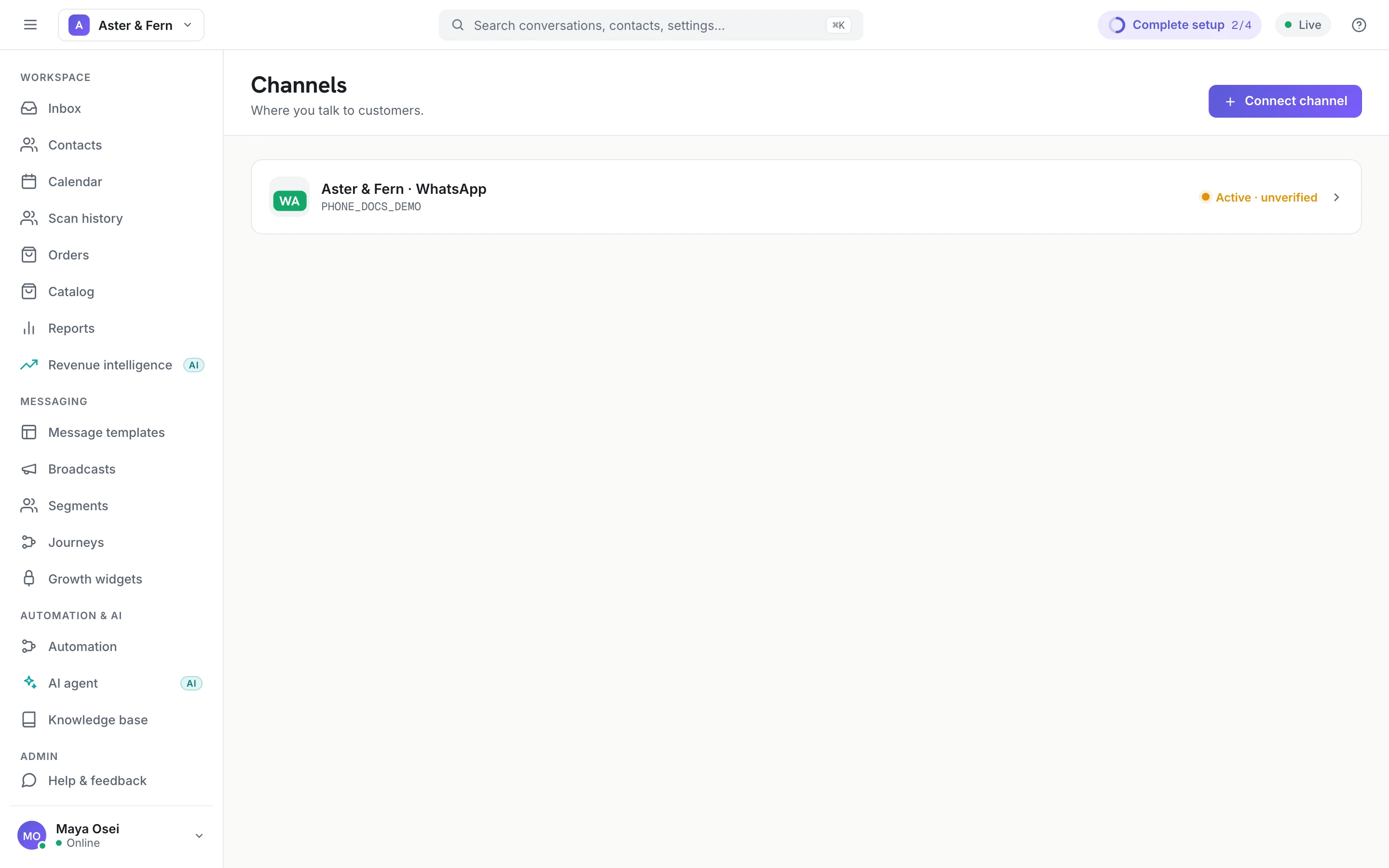
- In the console, go to Channels and choose Connect WhatsApp.
- A Facebook popup opens. Sign in with the account that administers your business.
- Select or create your Meta Business account and your WhatsApp Business Account.
- Select the phone number, or add a new one and verify it with the code Meta sends.
- Accept the permissions and close the popup.
Juno then reads the connection back from Meta with the token the sign-up returned, rather than trusting anything the browser reported. That is why the number that appears in the console is the number Meta actually confirmed you own.
What Juno does immediately afterwards
- Imports your existing message templates from the WhatsApp Business Account. See Message templates.
- Subscribes to incoming messages for that account, so customer messages start arriving.
- For a coexistence number, requests the contact and conversation history import. This has a hard deadline and one attempt — see coexistence.
Check it worked
Three checks, in this order, because each one fails differently:
- Send yourself a message. From a phone that is not the business number, message the business number. It should appear in the inbox within a few seconds. This proves inbound routing.
- Reply from the inbox. The reply should arrive on the phone. This proves outbound delivery and, incidentally, that your 24-hour window is open.
- Send a photo. Attach an image and send it. This is the check that catches media storage not being configured, and it is worth doing on day one — WhatsApp expires media about 30 days after the message, so a gap found later may not be recoverable.
Then open Templates and confirm the list is not empty. If it is, run a sync and read the error; an empty template list means nobody outside a 24-hour window can be reached.
If the popup closes with nothing
The two common causes:
- The Facebook account is not an admin of the business. Meta will let you through several screens before this surfaces.
- The number is already registered to another WhatsApp Business platform. It has to be released there first, which is done from that platform, not from Juno.